Over the past three years, we’ve meticulously crafted Enlivy, an API-powered SaaS solution designed to change how businesses handle administration. Built with an API-first approach, Enlivy helps you simplify core back-office functions and gain valuable insights.
Key features include:
- Easier Business Management: Simplify daily tasks, from product listings to generating invoices and taking card payments through your own Stripe account.
- Less Repetitive Work: With the Banking pack, bank transactions sync from your bank every few hours (without it, you import a CSV file), freeing up your time to focus on strategic initiatives.
- Data-Driven Decision Making: See your month on the dashboard, as of your last bank sync or upload.
- Enhanced Efficiency: Eliminate manual processes and simplify workflows, boosting overall business efficiency.
- Flexibility & Scalability: Integrate Enlivy with your existing systems and scale your operations as your business grows.
On-the-go Access
Enlivy is designed for on-the-go access. No software installations are required: simply log in from any web browser on your desktop, laptop, or even your phone! Access your company information and manage your business from anywhere, anytime, even while relaxing on the couch.
Main Features
In this session, we’ll dive into the heart of Enlivy and showcase some of its key features designed to simplify your daily operations. We’ll take a closer look at the intuitive dashboard, explore the invoice management system, and walk you through handling transactions. Through real-world examples, you’ll see firsthand how Enlivy can change the way you manage your business.
Everything below assumes you have an organization set up, since that is what invoices, contracts and bank accounts hang off. If you are starting from an empty account, adding your organization is the first step.
The Dashboard
The Enlivy dashboard is your command center, offering a customizable view of the key metrics that matter most to your business. Get a quick snapshot of vital information, and personalize the dashboard to prioritize the data that fuels your decision-making. If you are deciding what belongs on it in the first place, we wrote about what a business intelligence dashboard is for and why most of them end up showing numbers nobody acts on.
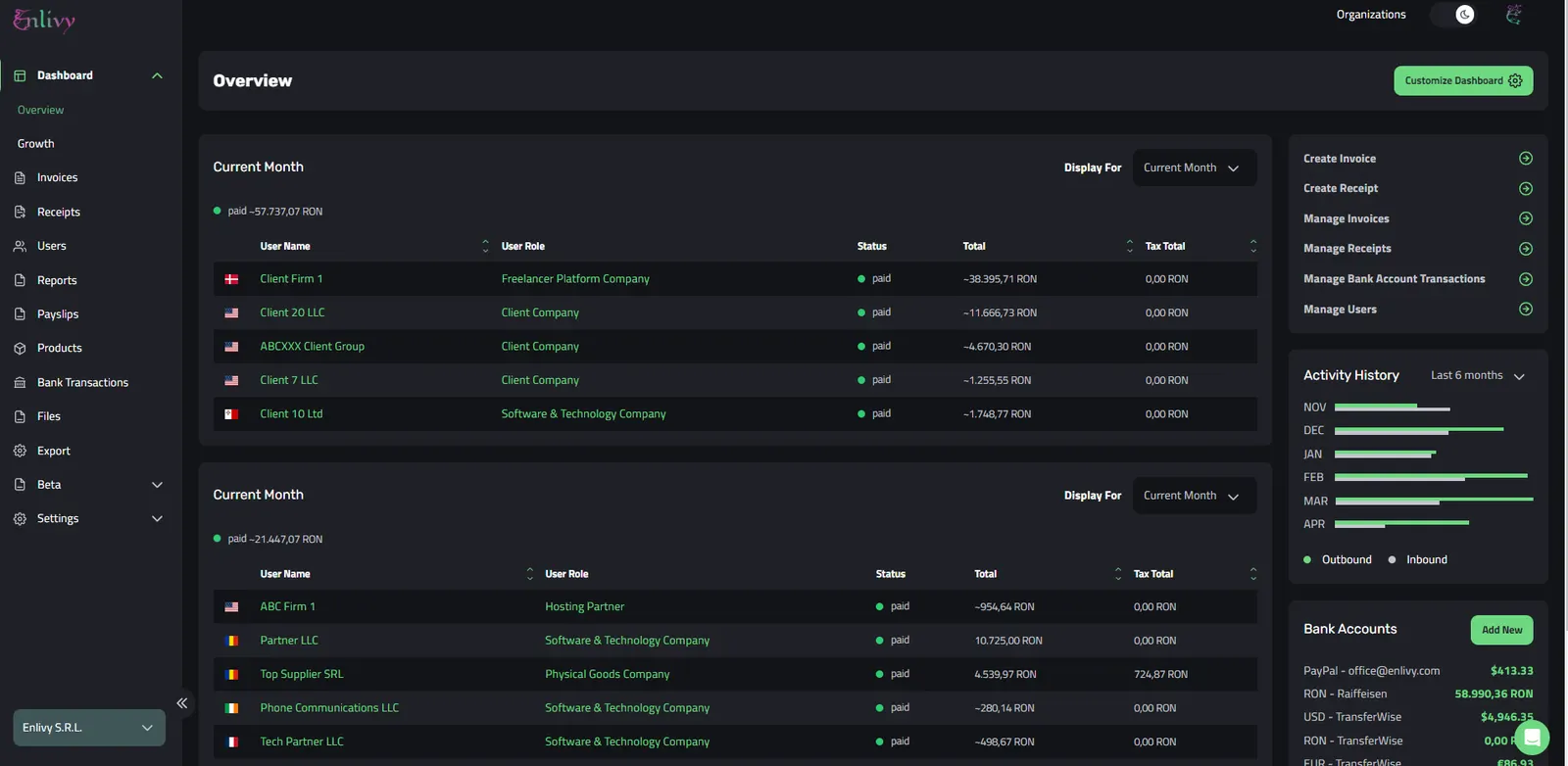 Enlivy’s Dashboard
In the image above, we’ve set the Dashboard shows us vital information about our business in the current month:
- How much money we’ve spent and to whom
- How much earnings we’ve received from our clients
- A quick menu for: creating invoices/receipts, and managing different features (invoices, receipts, users, and bank account transactions)
- Our Activity History in the last 6 months
- Financial information about how much liquidity our firm has in its multiple bank accounts
Everything you see on the dashboard is completely customizable. You can even drag and drop the menu widgets to create a layout that perfectly suits your workflow and preferences.

Customization of Enlivy’s dashboard

Customization of Enlivy’s dashboard
The Invoice Hub
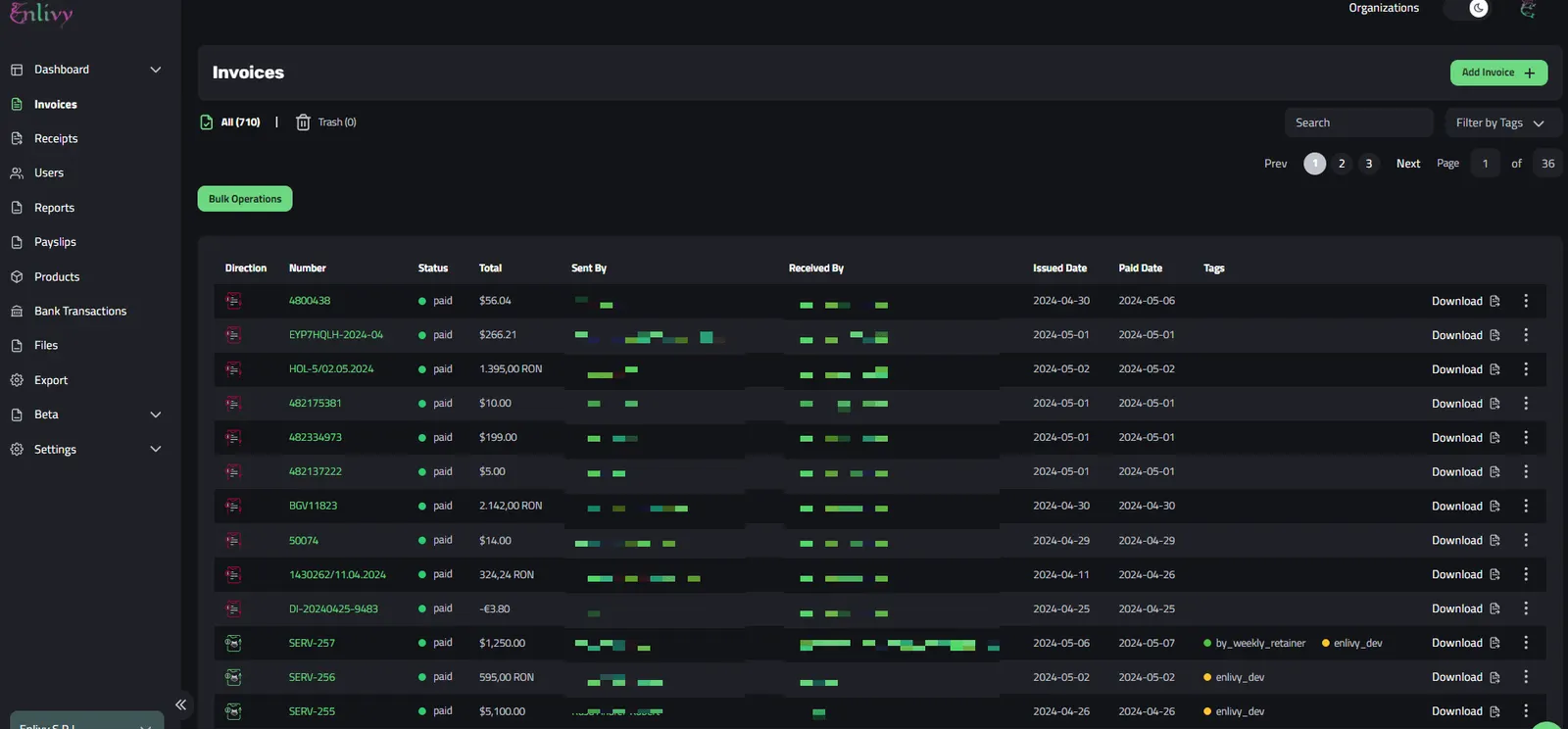
Enlivy’s Invoice Menu
The Enlivy invoice module transforms invoice management into a simple and centralized experience. No matter if you’re sending invoices to clients (outbound) or receiving invoices from vendors (inbound), all your invoice activity resides within a single, user-friendly location.
The invoice module presents a conveniently paginated list, offering a quick snapshot of all your invoices. Each entry displays vital details, including the direction of the invoice (incoming or outgoing), a unique identifier for easy reference, the total amount due, the sender and recipient information (your company or your client’s company), the date the invoice was issued, the due date for payment, and the current invoice status (paid, overdue, etc.).
Enhanced Organization and Search:
- Quick Invoice Navigation: Locate specific invoices using the intuitive search bar. Simply enter relevant keywords or reference numbers to quickly find the information you need.
- Customizable Tagging System: For even more granular organization, use Enlivy’s customizable tagging system. Create and apply tags to categorize your invoices based on project, client type, or any other criteria that suits your workflow. Utilize these tags to filter your invoice list, allowing you to sort and view invoices based on the specific tags you assign.
- Downloadable PDF Invoices: For easy sharing with clients or record-keeping purposes, any invoice within the Enlivy system can be downloaded as a PDF file with a single click.
- Direct Invoice Editing: Need to make changes to an existing invoice? Edit it directly within the platform until it is finalized; after that, only its status, paid date and tags change.
Adding an Invoice
Adding invoices to Enlivy is a breeze! Here’s how it works:
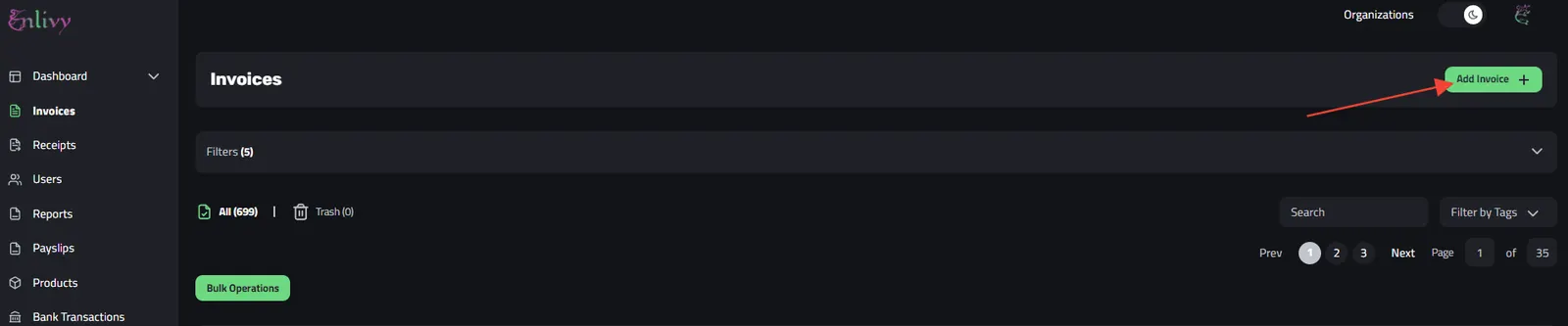
- Click the “Add Invoice” button and choose your source:
- Select “Enlivy Invoice” if you created the invoice within the platform.
- Choose “External Invoice” if the invoice originated from another source.
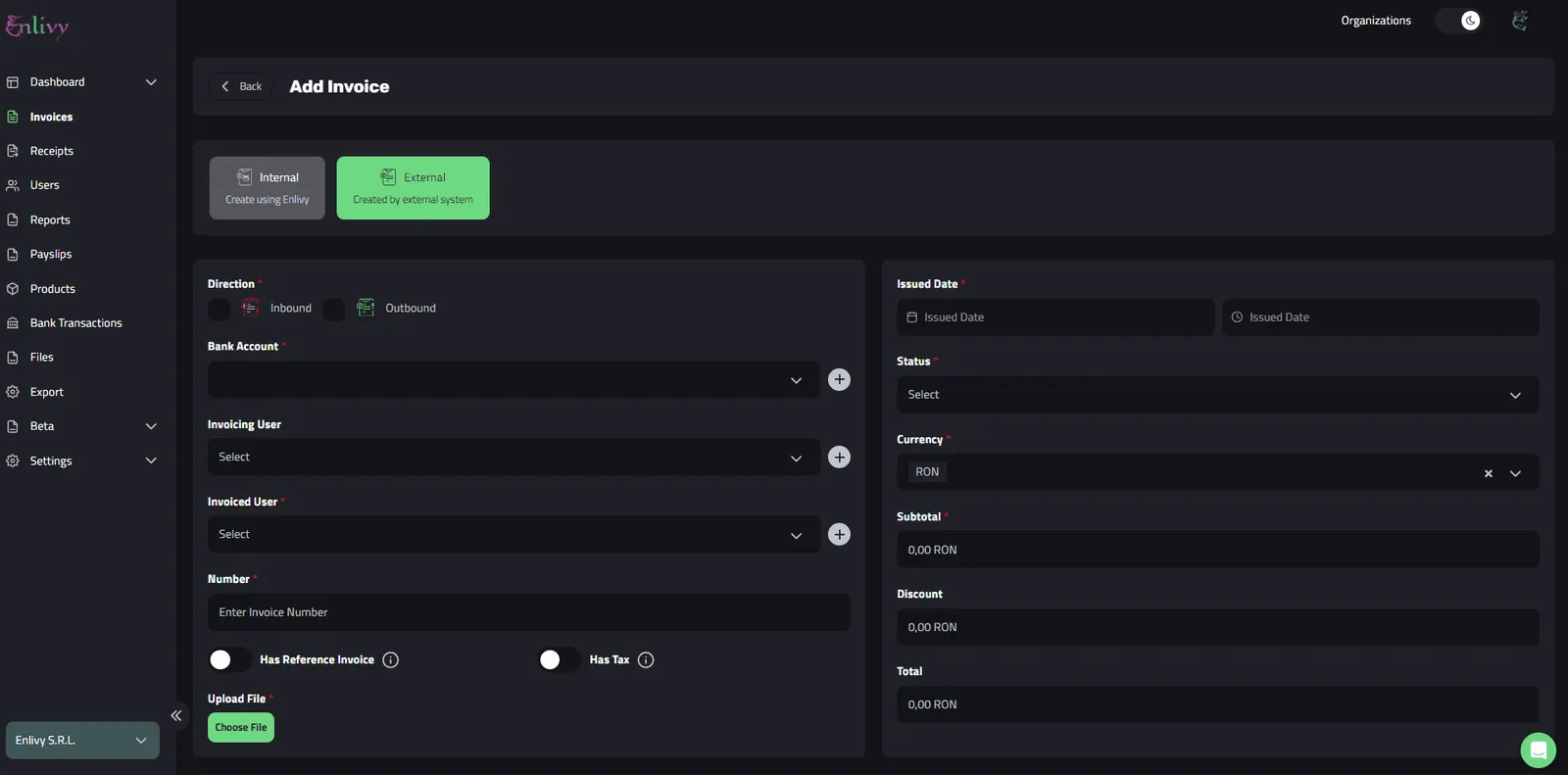
Fill in the essential details:
- Direction: Specify whether the invoice is inbound (received from a vendor) or outbound (sent to a client).
- Bank Accounts: Indicate the bank accounts involved in the transaction, depending on the invoice direction (payment source or destination).
- Parties Involved: Clearly identify the invoiced user (who received the invoice) and the invoicing user (who sent the invoice).
- Invoice Details: Enter the unique invoice number for easy reference.
- Issue Date: Select the date the invoice was issued.
- Status: Indicate the current invoice status (paid, draft, scheduled, partially paid, etc.).
- Paid Date (if applicable): If the invoice has been paid, enter the payment date.
- Currency: Specify the currency used in the invoice.
- Subtotal: Enter the subtotal amount before taxes or discounts.
- Upload File (optional): Attach a copy of the invoice file (if available) for your records
Bank Transactions
Enlivy gives you two convenient options for managing your bank transactions:
- Bank Sync with Nordigen: (Banking pack, up to 5 accounts) Connect your bank through Nordigen, a secure third-party service, and your transactions sync every few hours. This eliminates manual data entry and saves you valuable time. This started as a plan to pull Wise transactions in, which is where the shape of the whole feature came from.
- CSV File Upload: Simply upload a CSV file containing your bank transactions. Enlivy imports the data, ensuring your financial records are up-to-date.
Invoice Linking
Once your transactions are imported, you link each one to its invoice or receipt in one click, so every expense or income sits next to the document it belongs to, providing a clear and accurate picture of your finances.
Benefits:
- Less Data Entry: No need to type transactions in by hand. Bank sync (with the Banking pack) or a CSV upload simplifies the process.
- Enhanced Accuracy: Reduce the risk of errors with synced or CSV-based transaction import.
- Clear Visibility: Gain a comprehensive understanding of your cash flow by connecting invoices and transactions.
- Informed Decision-Making: Make data-driven financial decisions with a clear view of your income and expenses, as of your last sync or upload.
Importing Bank Transactions from a CSV file
Importing your bank transactions into Enlivy is a simple process that gets you organized in minutes. Here’s how it works:
Grab your CSV file: Make sure you have your bank transactions exported in a CSV (comma-separated values) format. Most banks allow you to do this easily.
Initiate the import: Within Enlivy, navigate to the bank transaction import section and select your CSV file.
Become the master of your data: Enlivy provides a user-friendly interface to help you match the data points in your CSV file (date, amount, description, etc.) to the corresponding fields in the system. This is a straightforward process that ensures your financial information is imported accurately.
Relax, you’re all set! Once you’ve completed the import and data mapping, your bank transactions will appear in Enlivy. This gives you a central hub for all your financial data.
Importing bank transactions from a CSV file
This is how the bank transactions information that we’ve uploaded will be displayed in Enlivy:
Example of Bank Transactions in Enlivy, after import
Managing Bank Transactions & Connection with Invoices
The Enlivy bank transactions section acts as your financial command center. It provides a consolidated view of all your imported or synced transactions, giving you a clear understanding of your cash flow. But Enlivy goes beyond simple transaction visibility. It lets you connect these transactions to their corresponding invoices.
Imagine this: You receive a $1,000 USD deposit into your account. A few days prior, you sent an invoice for $1,000 to a client. Within Enlivy, you can navigate to the bank transaction, click “connect,” and link it directly to the relevant invoice. This intuitive process links your income to the service it represents.
The power of connection doesn’t stop there. Similarly, you can connect outgoing transactions (expenses) to invoices you’ve paid. This simplifies your expense management and provides a clear audit trail for your financial records.
Benefits:
- Faster Reconciliation: Save time by linking transactions to invoices in a few clicks.
- Enhanced Visibility: Gain a comprehensive picture of your cash flow by seeing how income and expenses are linked to specific invoices.
- Improved Accuracy: Reduce the risk of errors by ensuring your financial data is meticulously reconciled.
The next video will guide you through the process of connecting a transaction initiated by one of our valued clients with the corresponding invoice we dispatched to them just days ago. This demonstration will showcase the simplicity and clarity of the process, ensuring smooth and efficient management of transactions and invoices.
In the above video, we had a bank transaction of 1250$, that we’ve connected with a invoice that was already added in the Enlivy App, and sent to our client.
Bank Transaction Cost Types
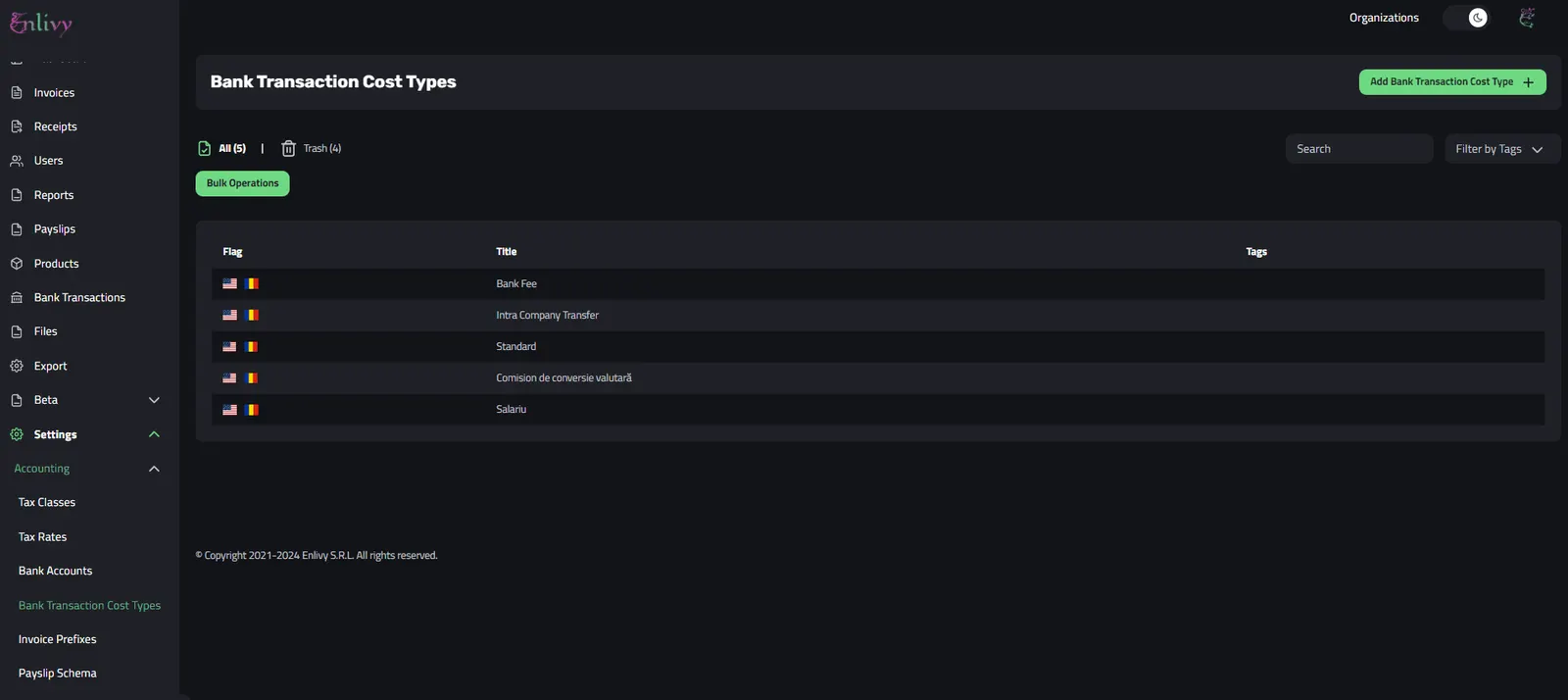
Example of Bank Transaction Cost Types in Enlivy
Enlivy offers users the convenience of creating and customizing specific bank transaction cost types to aid in classification. These personalized cost types serve as invaluable tools for characterizing various transactions, so users can categorize their banking activities efficiently and precisely.
Here are two examples of commonly used bank transaction cost types:
- Bank Fee: This classification is applied to fees charged by the bank for various services, aiding in the identification and management of banking-related expenses.
- Intra-Company Transfer: This category is employed for transactions involving the movement of funds between our company’s distinct bank accounts. It enables precise tracking and organization of internal financial transfers.
Adding A Custom Cost Type is easy and simple, like in the video below:
Adding A Custom Bank Transaction Cost Type in Enlivy
After Adding your new cost type, you can use it to define the transactions that you want, enabling you to easy filtering your bank transactions and keeping a record of the money in your organization.
This article provides an overview of the primary functionalities of the Enlivy app. Upon its full release, we will prepare comprehensive articles detailing each feature and capability of Enlivy, offering in-depth insights into its various functionalities and how they can benefit users.
Those detailed pages now exist. The ones covered above are Invoices, Bank Account Data and Bank Transactions, Receipts and Payslips. If you would rather read the walkthroughs, we wrote up how invoices work and how payslips work in more depth.