

Dashboard
A Dashboard You Can Shape Around Your Work
See the work and numbers that matter to you, then customize the dashboard by adding and arranging available widgets.
Create a free accountFree account, no card needed.
AN OVERVIEW THAT FITS THE PERSON
Begin with what needs attention
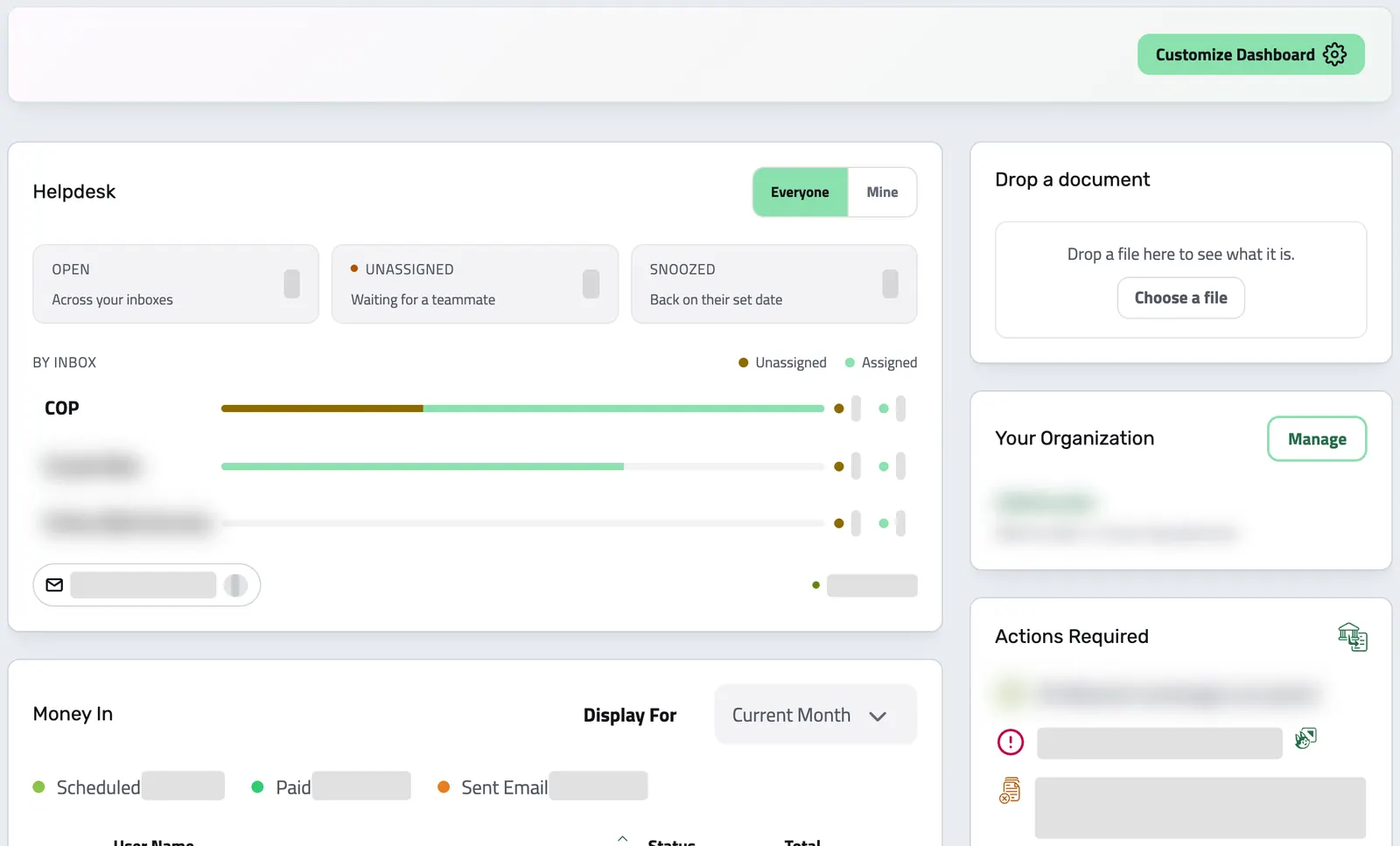
Your dashboard brings several parts of the business into one working view.
It starts from a default arrangement that includes invoice totals for the current month, money in and money out, the actions waiting on you, quick actions, a place to drop a document and your plan's usage. Helpdesk and Bank Accounts join it for the people with access to those areas, and each widget shows only what the person's role can open.
-
See the next action
Actions Required lists what is waiting on you, from overdue invoices to unreconciled transactions, and each line opens the list behind it.
-
Know where the money stands
Invoice totals for the period by status, paid, scheduled or still outstanding, with the clients or suppliers behind them.
-
Make the space yours
Add, move, rename and remove widgets, then apply the layout. It is saved for your account in this organization.
THE WIDGETS
Eight widgets, each with one job
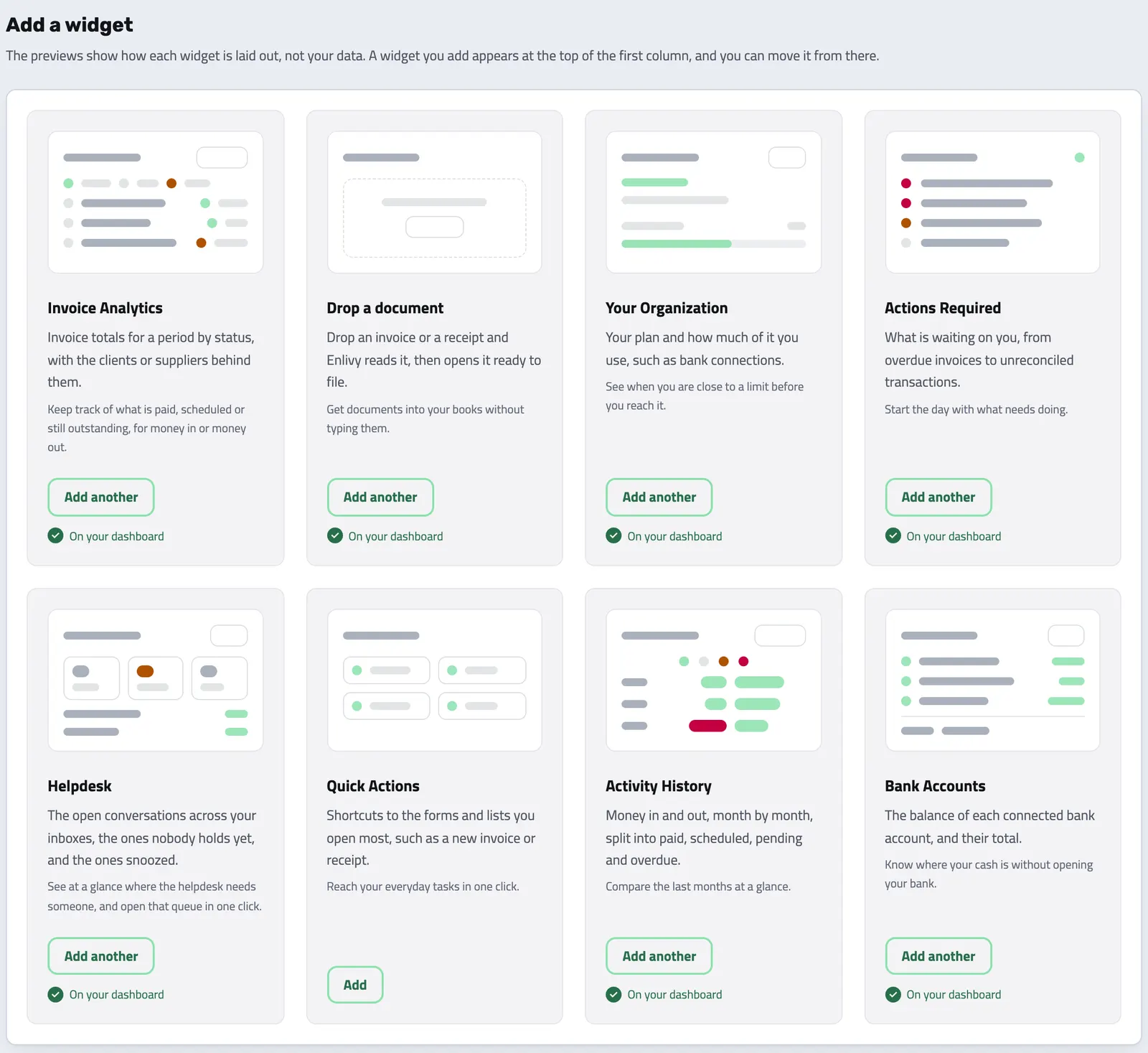
You pick them from a gallery where each card shows how the widget is laid out and what it is for. The previews are schematic, not your organization's data.
-
Invoice Analytics
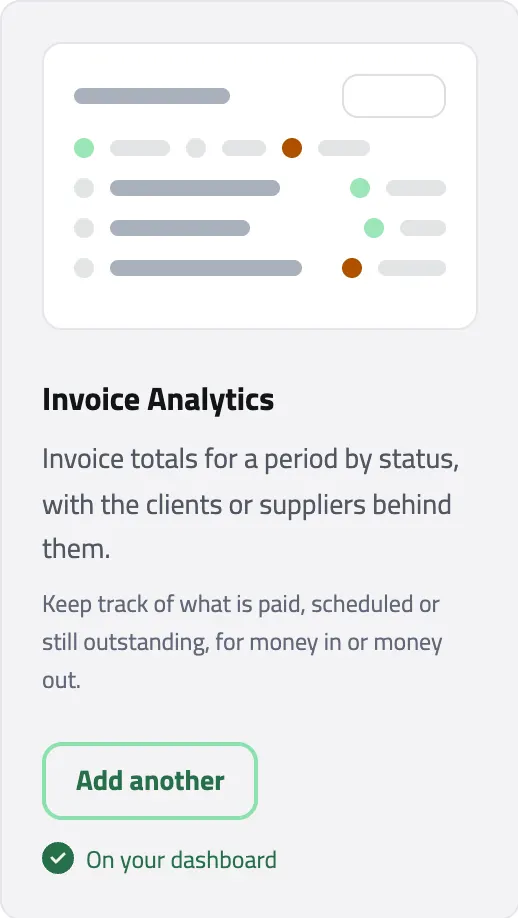
Invoice totals for a period by status, with the clients or suppliers behind them, for money in or money out.
-
Activity History
Money in and out, month by month, split into paid, scheduled, pending and overdue.
-
Actions Required
What is waiting on you, from overdue invoices to unreconciled transactions.
-
Quick Actions
Shortcuts to the forms and lists you open most, such as a new invoice or receipt.
-
Drop a document
Drop a file and open it as an invoice, a receipt, a contract or a file. With your own OpenAI key connected, Enlivy can read it and fill in the form.
-
Your Organization
Your plan and how much of it you use. Changing the plan is for the people who manage billing.
-
Bank Accounts
The balance of each bank account and their total, for the people with access to banking.
-
Helpdesk
The open conversations across your inboxes, the unassigned ones and the snoozed ones, for teams on the Helpdesk pack.
Change your layout in four steps
-
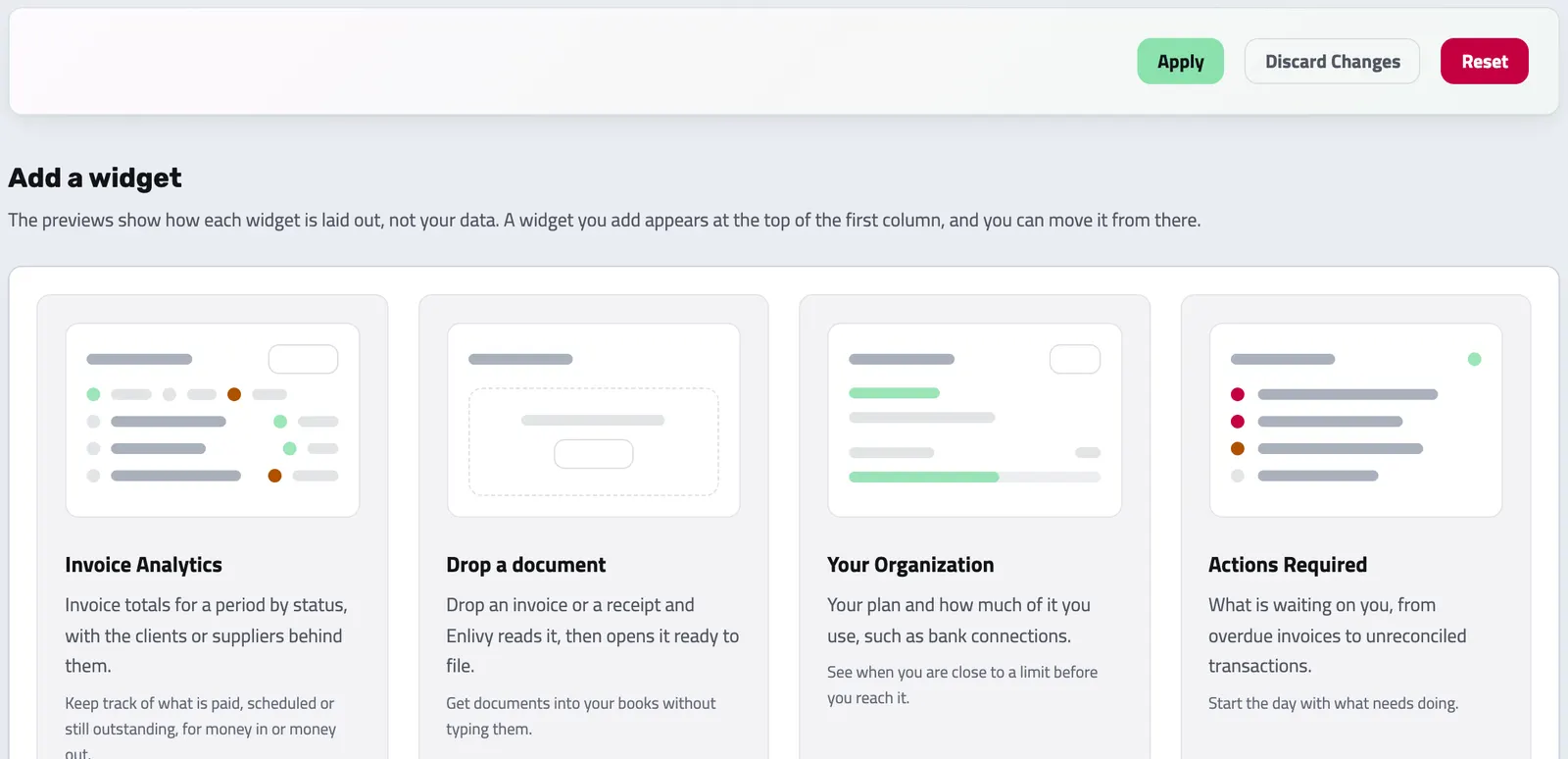
Choose Customize Dashboard
Enter edit mode with the Customize Dashboard button beside the page title. On a narrow screen it shows as an icon.
-
Add from the gallery
Each card shows the widget’s layout and what it is for. Widgets already on the page are marked On your dashboard, and you can add another copy of any of them.
-
Arrange and set it up
A new widget appears at the top of the first column. Drag it within a column or across the two, rename it, choose its settings, or remove it.
-
Apply, discard or reset
Apply saves the layout for your account. Discard Changes goes back to your saved layout, and Reset returns the page to the default arrangement.
YOURS, NOT SHARED
Each person keeps their own layout
A layout belongs to one person in one organization. Nobody arranges a dashboard for someone else, so a teammate's changes never move your widgets. Until you apply a layout of your own, the default follows your current access.
-
Saved on your account
Your arrangement is stored with your account, so it is the same in any browser you sign in from.
-
Shaped by your role
Widgets show only what your role can open, and Bank Accounts and Helpdesk appear for the people with access to those areas.
-
Settings stay with it
The titles, periods and other settings you choose in customize mode are saved when you apply the layout.
Works together with
- Invoices Create an invoice, send it to your client, and connect the contract, receipt or bank transaction that belongs with it. For Romanian e-Factura, use the configured ANAF connection.
- Bank Account Data See every connected account, balance, and transaction in one dashboard. Synced securely, kept current, and linked to the rest of your records.
- Document Intake Start with a document, choose where it belongs and review the form; an AI reading you request can suggest its details.
- Helpdesk Work through questions from your website widget and an IMAP-connected mailbox, assign a teammate, reply with context and hold mail from unknown senders for review.
- Reports Replace updates spread across chat and email with structured reports your team fills in. You define the questions and the expected rhythm once with a reusable schema, share it with the people who answer it, and every submission lands in Enlivy, ready to compare.
- Data Export Export your invoices, receipts, payslips, contracts, and transactions in the format and folder structure your accountant expects, for any date range. Built in, at no extra cost, on every plan.
- MCP Connect Enlivy to Claude, ChatGPT, Cursor, or any AI assistant through MCP. Ask about your invoices, contracts, and pipeline, and get real work done, safely scoped to exactly what your own account can already do.